Evaluations
An evaluation captures one assessment of one agent on one interaction. The evaluation moves through a clear lifecycle from draft to a terminal state (closed, resolved, or voided).
Open the Evaluations tab from the QA section.
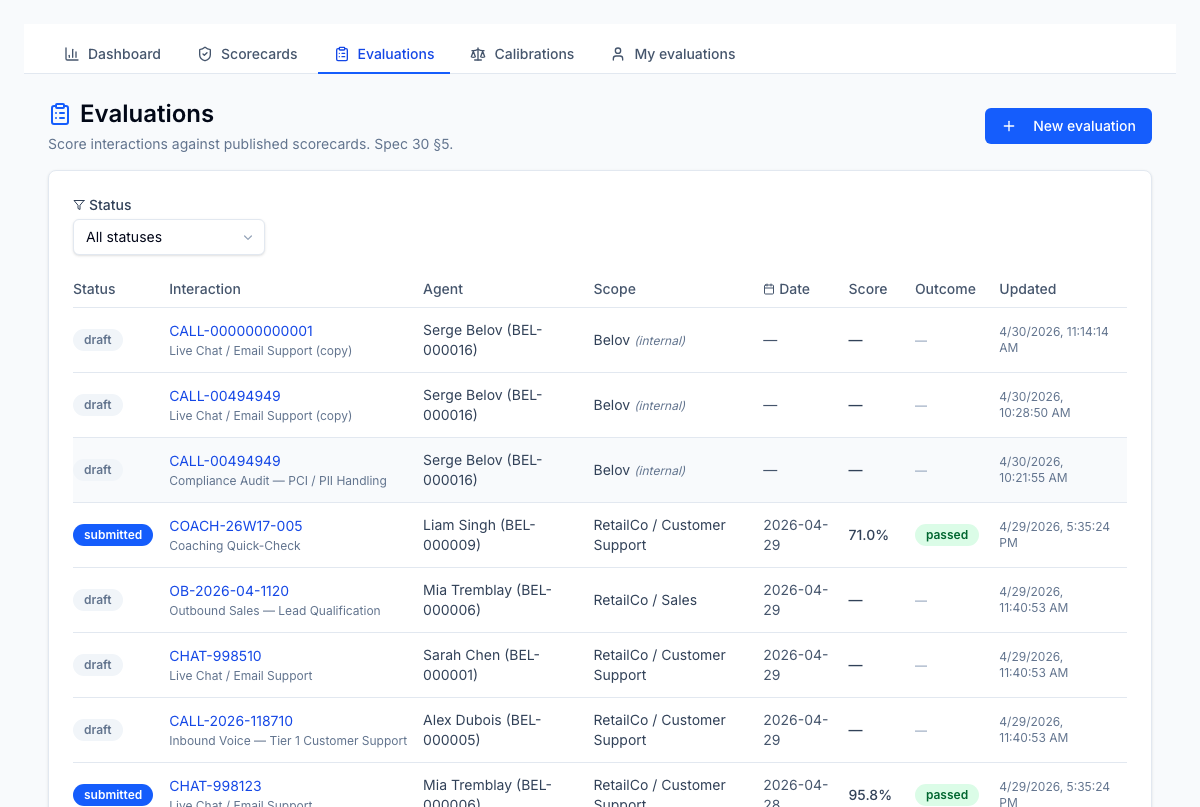
Starting an evaluation
Click New evaluation. You'll need:
- Scorecard — required. Only published scorecards in your scope appear.
- Agent — required. The agent's current client/LOB scope is captured automatically and pinned to the evaluation.
- Interaction reference — optional. A call ID, ticket number, or any short identifier for the interaction.
- Interaction date — optional.
You can also attach a linked interaction at creation time:
- Type — call recording, screen recording, chat transcript, email thread, or ticket thread
- URL — link to the artefact in your call recorder, telephony platform, or service desk
- Transcript — paste-driven text capture for chat/email/voice
Submit creates a draft evaluation and drops you into the detail page to start scoring.
The evaluation page
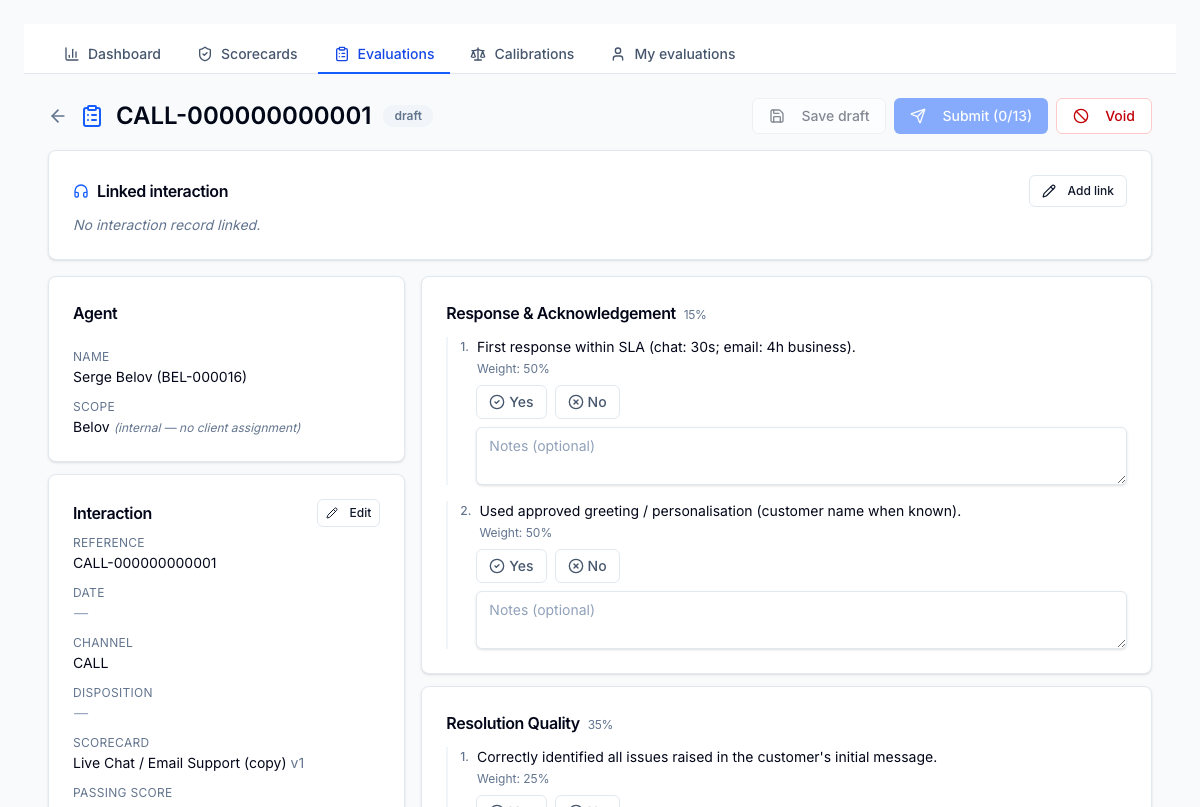
The evaluation detail uses a two-column layout:
- Left — context: agent, scorecard, client/LOB, interaction reference and date, status badge, and the linked-interaction embed (player, transcript) when present.
- Right — the scorecard sections and questions, rendered with the right input control for each question type.
While the evaluation is in draft, the right column is editable. Save draft persists answers without changing status. Submit locks the answers, computes the score, and triggers the post-submit workflow defined by the scorecard's agent response type.
Question controls
| Type | Control |
|---|---|
| Binary | Pass / fail toggle |
| Scale | Numeric input within the configured range |
| Rubric | Radio buttons with labelled levels |
| Text | Textarea for narrative comments |
If a question is N/A eligible, you'll also see an N/A checkbox; ticking it removes the question from the section's weighted score, with weight redistributed across the remaining scored questions in that section.
Lifecycle
 draft  ──► submitted ──► (agent acknowledges) ──► closed
              │
              ├──► (agent disputes within window) ──► disputed ──► (QA lead resolves) ──► resolved
              │
              └──► (QA lead voids) ──► voided
| Status | Who acts next | Available actions |
|---|---|---|
| Draft | Evaluator | Save draft, submit |
| Submitted | Agent | Acknowledge, dispute (within dispute window) |
| Disputed | QA lead | Resolve (with notes), void |
| Resolved | — | Terminal |
| Closed | — | Terminal |
| Voided | — | Terminal |
The Save draft button is bounded by the scorecard's optional editing window — once that elapses, evaluators can no longer edit answers.
Inline metadata edits
On a draft evaluation, the metadata fields (interaction reference, interaction date, linked interaction) can be edited inline without re-creating the evaluation. After submit, metadata is locked.
Disputing and resolving
If the scorecard's agent response type is Acknowledge & dispute, the agent sees both options on a submitted evaluation. The dispute action opens a sheet to capture the agent's reason. The status moves to disputed and a banner on the evaluation surfaces the reason to QA leads.
A QA lead with qa.evaluation.resolve can open the resolve sheet to add
resolution notes and adjust answers. Resolving moves the status to
resolved and locks the evaluation.
Calibrate from this evaluation
The Calibrate action on an evaluation seeds a new calibration session pre-filled with the same scorecard, interaction reference, and interaction date. Useful when you want the team to align on a tricky call.
See Calibrations for the full flow.