User Management
Manage user accounts, roles, and access from Settings → Users. This page covers inviting new users, assigning roles, monitoring activity, and handling account recovery.
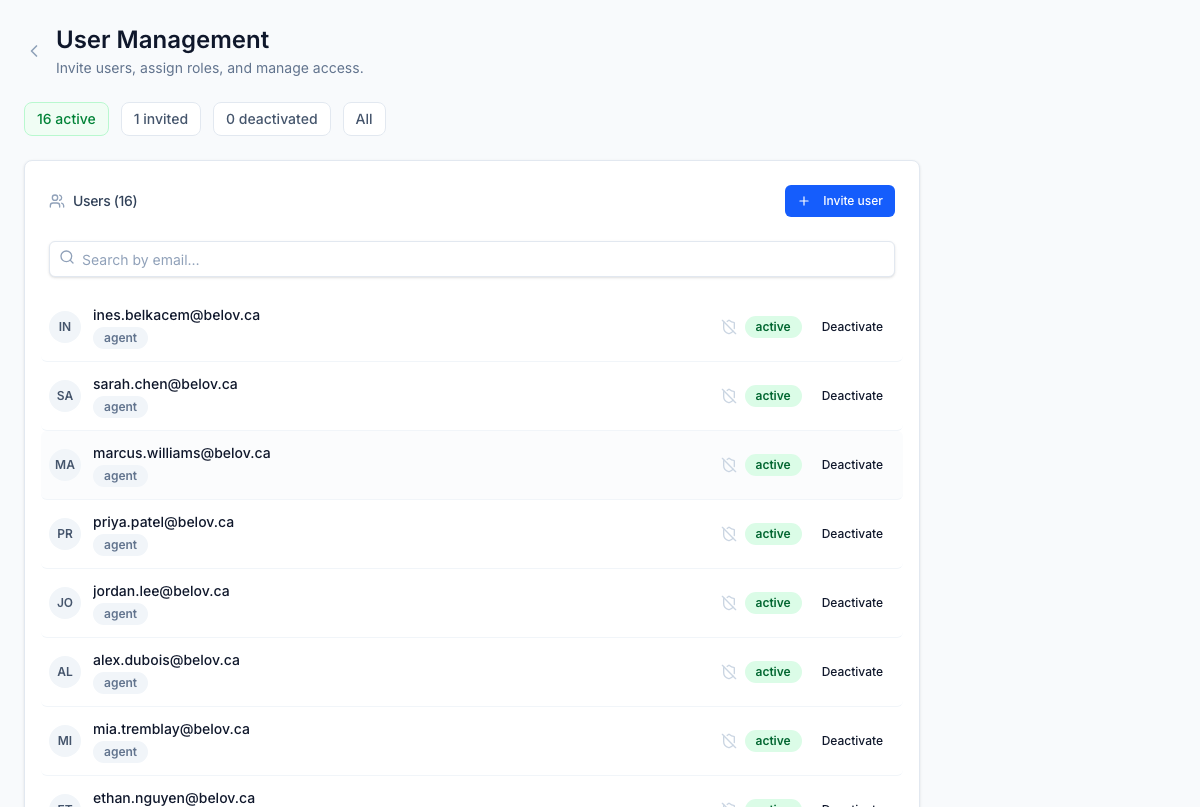
User list
The user list shows all accounts in your tenant with summary badges for Active, Invited, Deactivated, and All counts. Use the search bar to find users by email.
Each row displays:
- Email address
- Status badge (active, invited, or deactivated)
- MFA status (enabled or not enrolled)
- Last login (relative time, e.g., "2h ago")
Inviting a user
- Click Invite User.
- Enter the user's email address.
- Select a role from the dropdown (e.g., hr_admin, recruiter, supervisor).
- Click Send Invite.
The user receives an email with a link to set their password and enrol in MFA. Their status shows as invited until they complete the setup.
If an invited user hasn't received their email, click Resend Invite from the user's row in the list.
User detail panel
Click any user row to open the detail panel on the right side. From here you can:
Edit roles
Toggle roles on or off for the user. Available roles include:
| Role | Description |
|---|---|
tenant_admin | Full tenant administration access |
hr_admin | HR and employee management |
hr_manager | Team-level HR operations |
wfm_analyst | Workforce management and scheduling |
recruiter | Recruiting and candidate management |
supervisor | Team supervision and QA |
agent | Frontline agent (limited access) |
compliance_officer | Compliance and audit access |
Role changes take effect on the user's next login or token refresh.
Reset password
Click Reset Password to send a password reset email to the user. This is useful when a user is locked out or has forgotten their credentials.
Force logout
Click Force Logout to immediately invalidate all of the user's active sessions and trusted device cookies. The user must log in again. Use this when:
- A user's account may be compromised
- You need to enforce a policy change immediately
- A departing employee's access needs to be revoked before formal deactivation
Activity log
The activity log shows a chronological timeline of actions related to the user:
- Account creation and invitations
- Login events
- MFA enrolment and verification
- Role changes
- Password resets
- Device trust grants
Click Load more to page through older events.
Deactivating a user
- Click the Deactivate button on the user's row (or in the detail panel).
- Confirm the action in the dialog.
Deactivated users cannot log in. Their data is preserved for audit and compliance purposes. To restore access, click Activate on a deactivated user.
Deactivating a user does not remove them from schedules or assignments. Coordinate with workforce management before deactivating an active employee.