Departments
Departments organise employees into reporting groups used for scheduling, access control, and analytics. Manage departments from Settings → Departments.
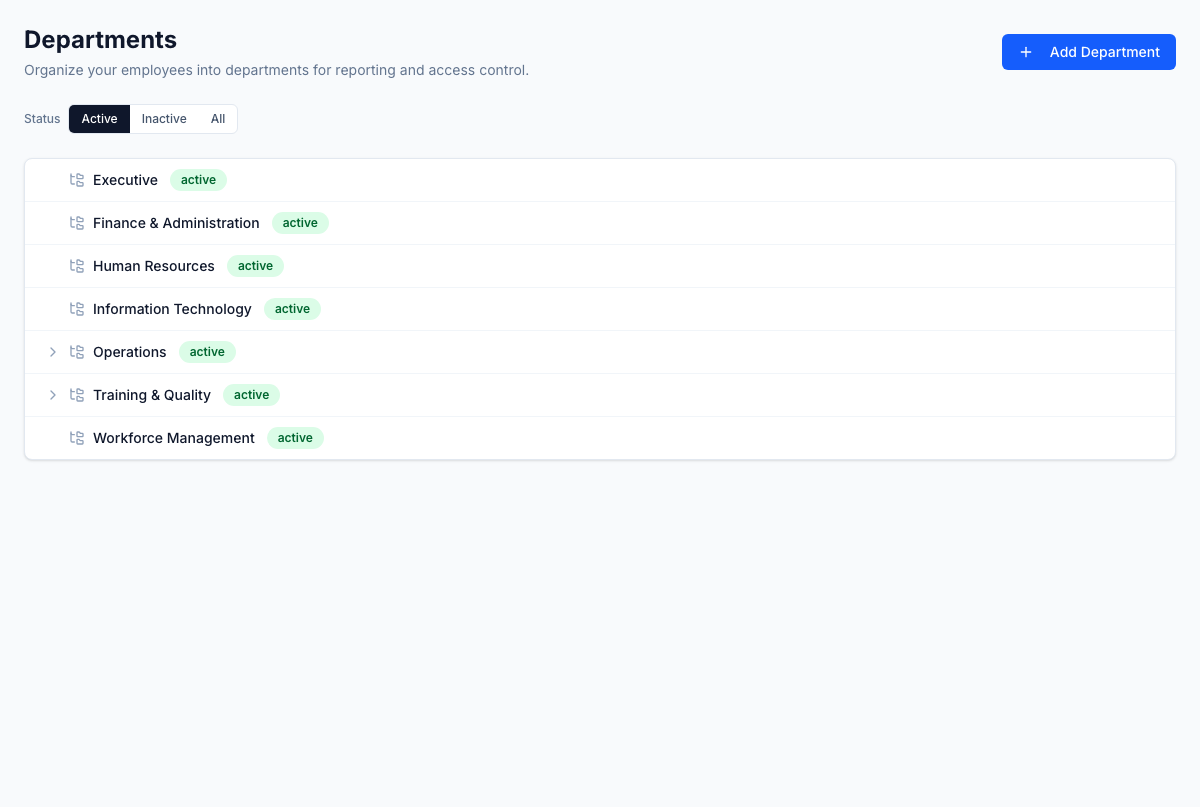
Department hierarchy
Departments are displayed as an indented tree showing parent-child relationships. Click the chevron (▶) next to a parent department to expand or collapse its children. Departments are sorted alphabetically at each level.
Each department shows:
- Department name with a folder icon
- Status badge (active or inactive)
- Action buttons (visible on hover): Edit, Deactivate/Activate, Delete
Creating a department
- Click Add Department.
- Enter the department name.
- Optionally select a parent department to nest it within an existing department.
- Click Create Department.
Editing a department
Click Edit on any department row. You can change the name or reassign it to a different parent department. A department cannot be its own parent.
Status filter
Use the status toggle above the department list to filter by:
| Filter | Description |
|---|---|
| Active (default) | Shows only active departments |
| Inactive | Shows only deactivated departments |
| All | Shows all departments regardless of status |
Deactivating a department removes it from the active view but preserves it for historical records. Click Activate on an inactive department to restore it.
Deleting a department
Click Delete on a department row to permanently remove it. Deletion is only available when:
- The department has no child departments (reassign or delete children first)
- No employees are assigned to the department
- No requisitions or onboarding plans reference the department
If any of these conditions are not met, the delete action is blocked with an explanation.
Department deletion is permanent and cannot be undone. If you want to hide a department without deleting it, use Deactivate instead.
Seeded departments
When a new tenant is created, a default set of departments is seeded (e.g., Operations, HR, Training). You can delete or rename these before assigning employees.