Sites
Sites represent the physical or virtual locations where your employees work. Manage sites from Settings → Sites.
Site types
| Type | Description |
|---|---|
| Office | A physical location with a street address and seat capacity |
| Virtual/Remote | A remote work designation with no physical address |
Site list
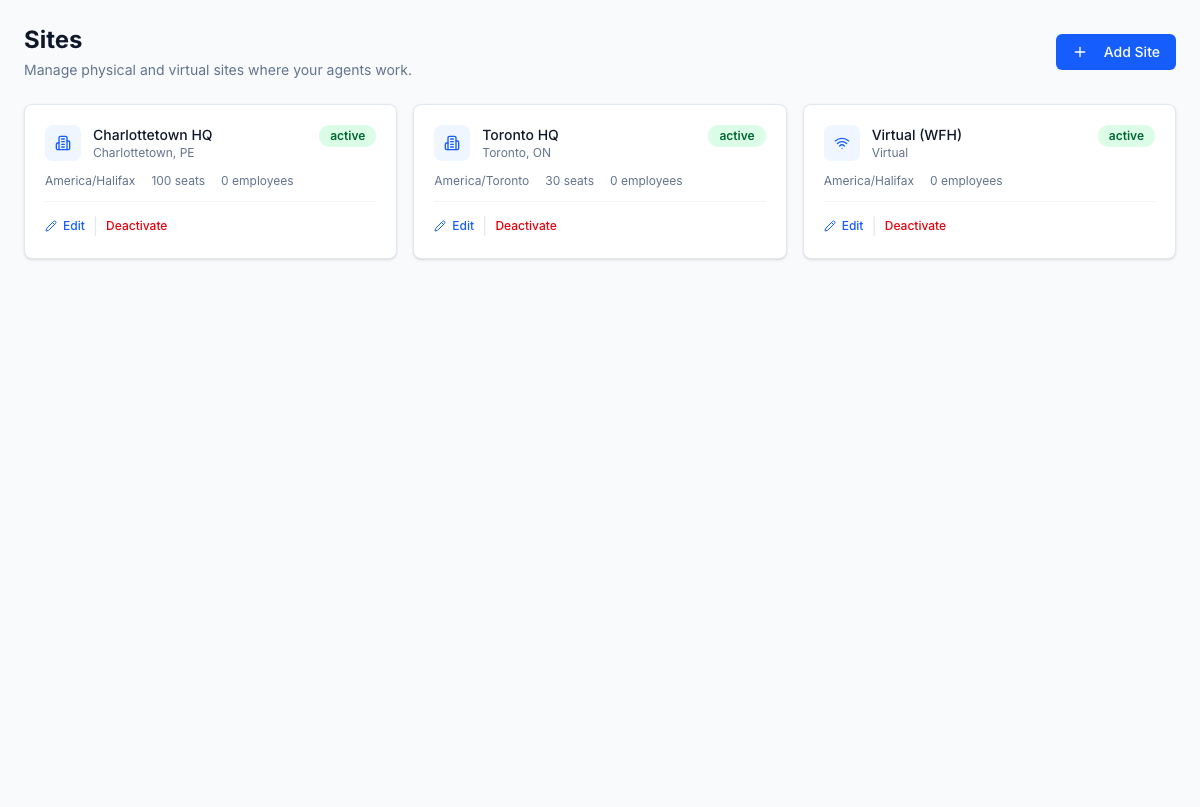
Sites are displayed as a responsive card grid. Each card shows:
- Site name and type icon (building for office, signal icon for virtual)
- Location (city, province/state) for office sites
- Timezone
- Seat capacity (office sites only)
- Employee count
- Status badge (active or inactive)
Creating a site
- Click Add Site.
- Enter the site name (required).
- Select the type (Office or Virtual/Remote).
- Select a timezone from the dropdown.
- For Office sites:
- Enter city and province/state
- Select the country (Canada or USA)
- Optionally set the seat capacity
- Click Create Site.
Virtual sites skip the location and capacity fields.
Editing a site
Click Edit on any site card to open the edit drawer with pre-filled values. Update the fields and save.
Deactivating a site
Click Deactivate on a site card to mark it as inactive. Inactive sites remain in the system for historical records but are excluded from dropdowns when creating schedules or assigning employees.
Click Activate on an inactive site to restore it.