Applications
An application links a candidate to a specific requisition and tracks their progress through the recruiting pipeline. Applications can be created when a candidate applies through the public portal, or manually by a recruiter.
Viewing an application
Applications are accessed from the candidate profile or from the requisition detail page. Click any application to open the application detail.
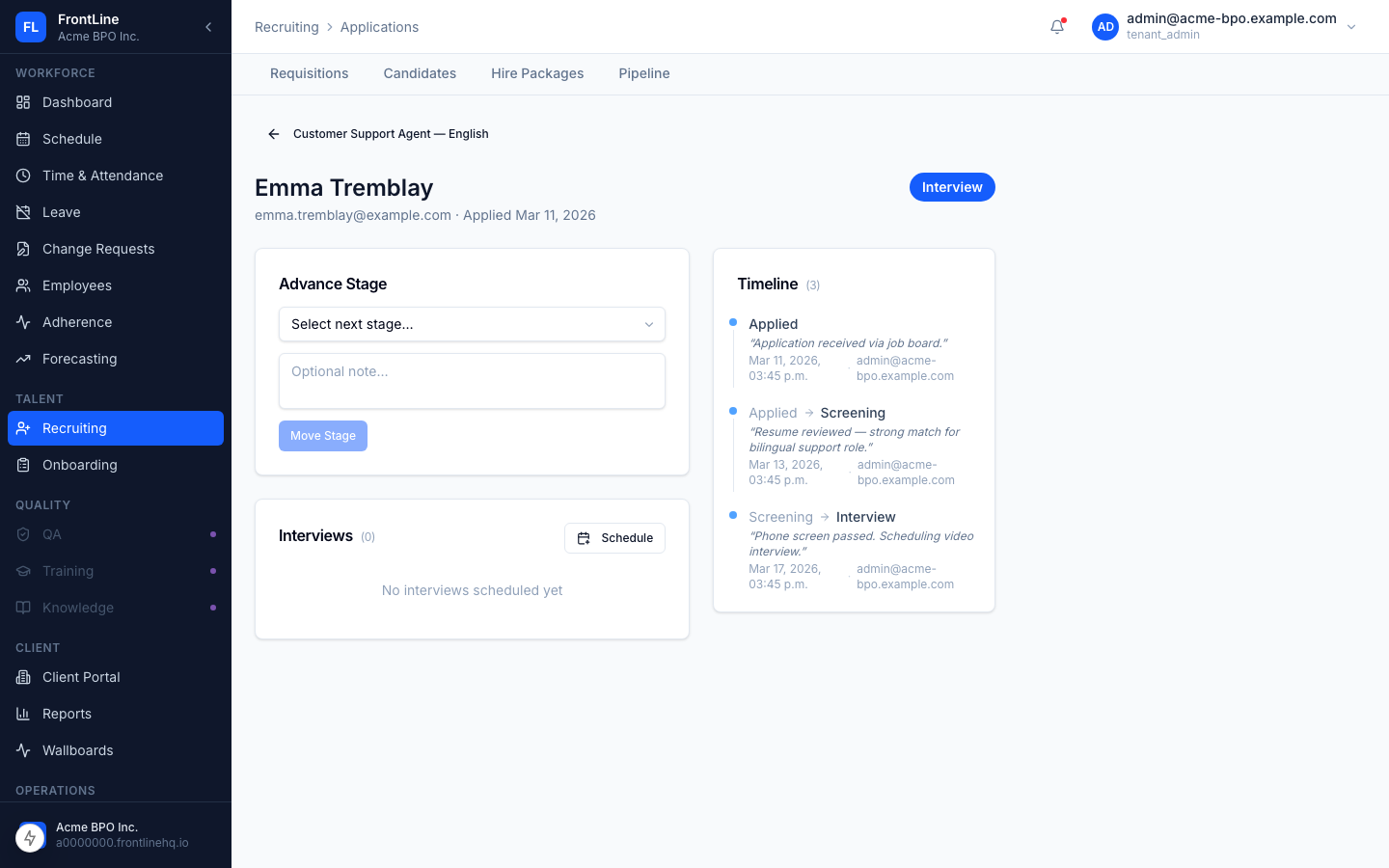
The application detail shows:
- Current stage — highlighted in the pipeline stage stepper at the top
- Offer — if an offer has been extended, details appear here including salary, start date, and offer status
- Interviews — any scheduled or completed interviews
- Documents — uploaded files attached to this application
- Hire Package — if a hire package has been initiated, its status and completion progress
Moving through the pipeline
Use the stage stepper to advance the candidate through the pipeline. Stages are:
Applied → Assessment → Screening → Interview → Background Check → Offer → Hired
Click the target stage to move the candidate forward. You can also move backwards if needed. Two terminal exits — Rejected and Withdrawn — are reachable from any non-terminal stage.
Assessments in the pipeline
If the application's (client, LOB) combination has an assessment configured, the candidate is automatically routed to the Assessment stage after submitting. The Assessment Engine drives this:
- Stage 1 (inline at apply) — synchronous assessment shown to the candidate during the apply flow. Pass / fail results land on the application as soon as the candidate completes them. Recruiters typically don't need to manually advance — the engine moves the application to Screening on completion (and to Rejected if a hard gate fails).
- Stage 2 (email invite) — a longer or role-specific assessment delivered later in the process, usually after Screening or Interview. The recruiter triggers the invite from the application detail.
If no LOB config or per-requisition override resolves an assessment for a given stage, that stage doesn't fire and the application skips through to the next one.
See Assessment Engine → LOB configs for how stage bindings are configured. Per-requisition overrides are managed on the requisition detail page.
Creating an offer
Once a candidate reaches the Offer stage:
- Click Create Offer.
- Enter the offer details: annual or hourly compensation, start date, and position.
- Attach offer documents for electronic signature if required.
- Save and send to the candidate.
The candidate receives access to review and sign the offer through their Candidate Portal account.
Initiating a hire package
After an offer is created, you can attach a hire package template:
- From the application detail, locate the Hire Package section.
- Select a template.
- The candidate will see the hire package in their portal with all required steps.
See Hire Package Pipeline for tracking in-flight packages.
Uploading documents
Click Upload Document in the Documents section to attach files to an application. Supported formats include PDF, Word, and common image formats. All uploaded files are scanned for malware automatically.