Requisitions
A requisition is a formal request to fill a position. It defines the role, headcount, priority, client assignment, and employment terms. All applications in FrontLine are attached to a requisition.
Viewing requisitions
Navigate to Recruiting → Requisitions to see all requisitions for your tenant.
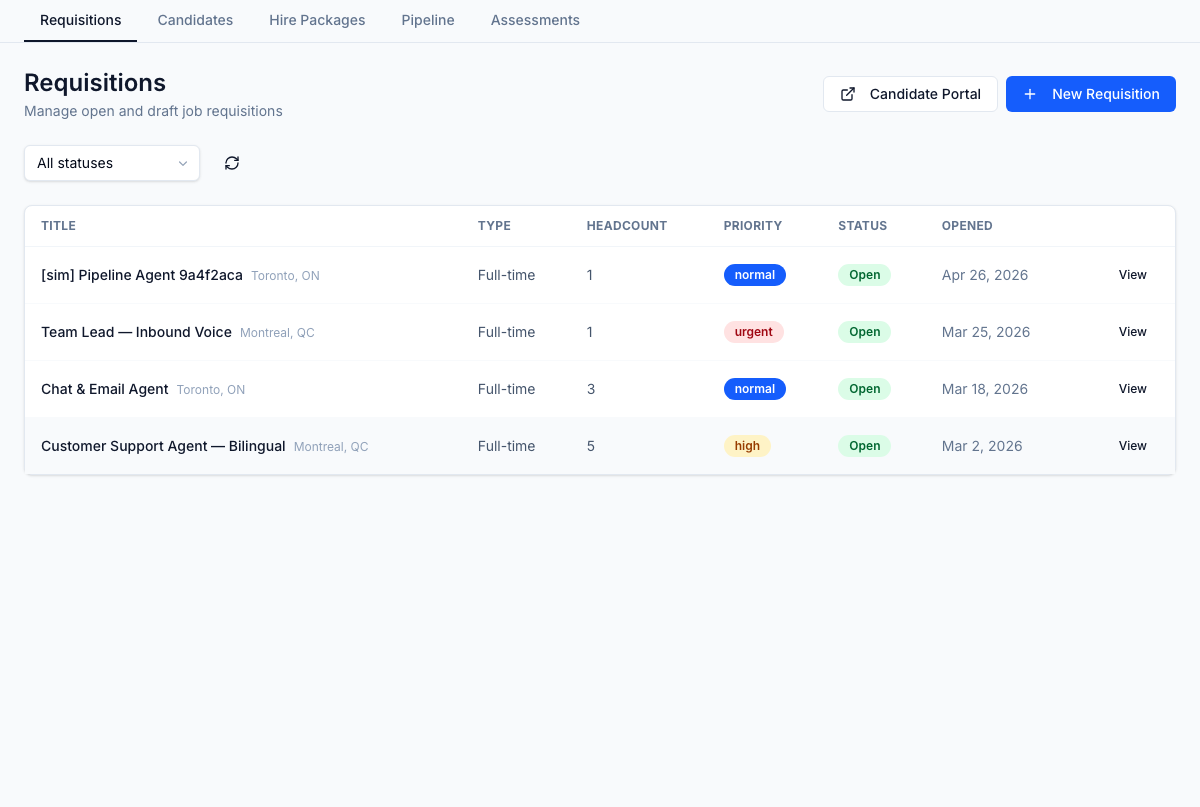
The list shows:
- Title — the job title
- Type — employment type (full-time, part-time, contract, etc.)
- Headcount — number of positions to fill
- Priority — urgency level (critical, high, normal, low)
- Status — current lifecycle state
- Opened — date the requisition was opened
Use the Status dropdown to filter by:
| Status | Meaning |
|---|---|
| Draft | In preparation, not yet accepting applications |
| Open | Actively accepting applications |
| On Hold | Temporarily paused |
| Filled | All headcount positions hired |
| Cancelled | Closed without filling |
| Archived | Retained for historical reference |
Creating a requisition
- Click New Requisition in the top right.
- Fill in the requisition details — title, employment type, headcount, priority, client, and LOB.
- Save. The requisition is created in Draft status.
- Change the status to Open when you are ready to start receiving applications.
Requisition details
Click any row to open the requisition detail page, which shows:
- Full position description
- All applications attached to this requisition, with current stage
- Offer and interview activity
- The Assessment card (see below)
Assessment template override
The Assessment card on the requisition detail page shows the assessment template that resolves for each pipeline stage (Stage 1 — inline at apply, Stage 2 — email invite later). The resolved template comes from one of two sources:
- Per-requisition override — explicitly chosen for this one requisition
- LOB config fallback — the default template for the (client, LOB, stage) combination
If neither source resolves a template, that stage doesn't fire and applications skip past it.
To override the default for this requisition only, click Override on the stage row and pick a template. The card flips to show the new resolution and labels the source as override. Click Clear to revert to the LOB-config default.
Setting an override to "no template" via this card is not how you skip an assessment stage on a single requisition. To skip a stage, advance the application past it from the application detail page.
For where the default templates and LOB bindings come from, see Assessment Engine → LOB configs.
Linking to the Candidate Portal
The Candidate Portal link in the requisitions header takes you directly to the public job portal, where candidates can browse open positions. Only requisitions with Open status and enabled portal visibility appear publicly.