Hire Package Templates
A hire package is a structured checklist that a candidate must complete as part of accepting an offer and completing pre-boarding tasks before their start date. Hire packages are built from reusable templates that you configure once and apply to any offer.
Viewing templates
Navigate to Recruiting → Hire Packages to see all templates.
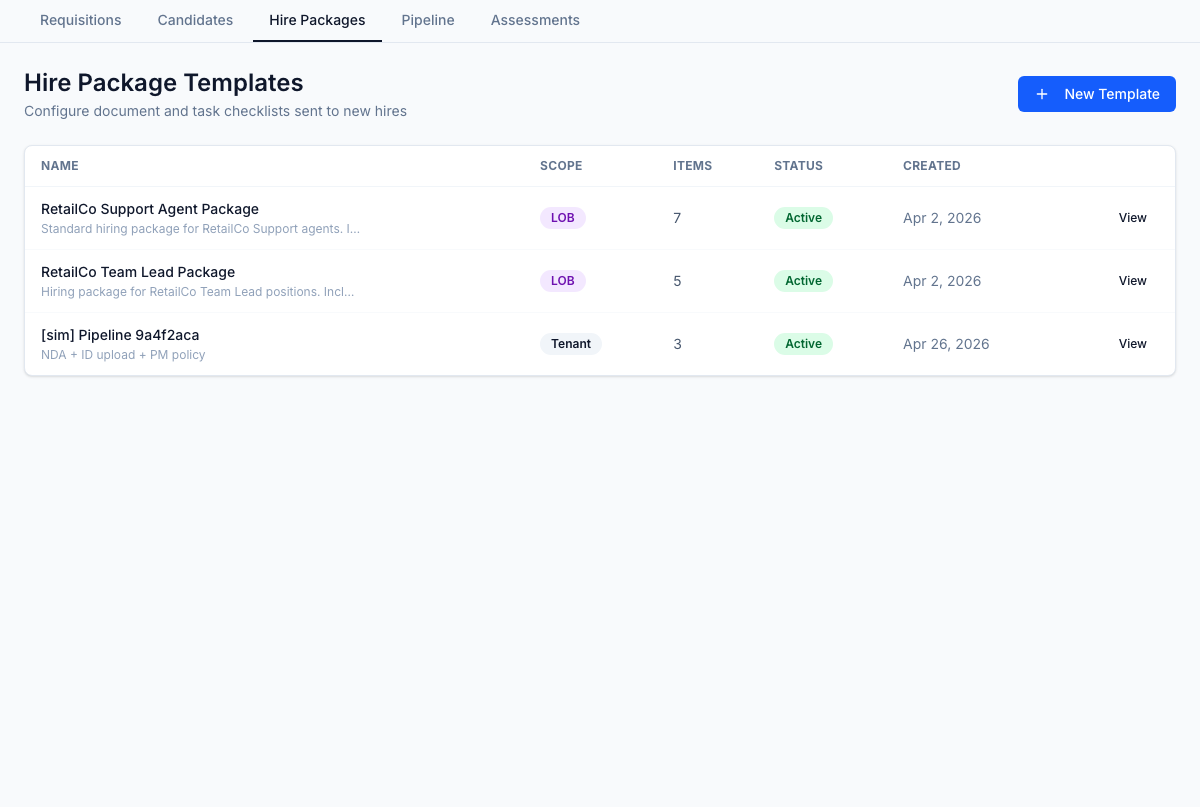
Each template shows:
- Name — the template name
- Scope — whether the template applies tenant-wide, to a specific client, or a specific LOB
- Items — total number of items across both steps
- Status — Active or Inactive
- Created — creation date
Creating a template
- Click New Template.
- Enter a name and set the scope (Tenant-wide, Client, or LOB).
- Save to open the template editor.
Template detail
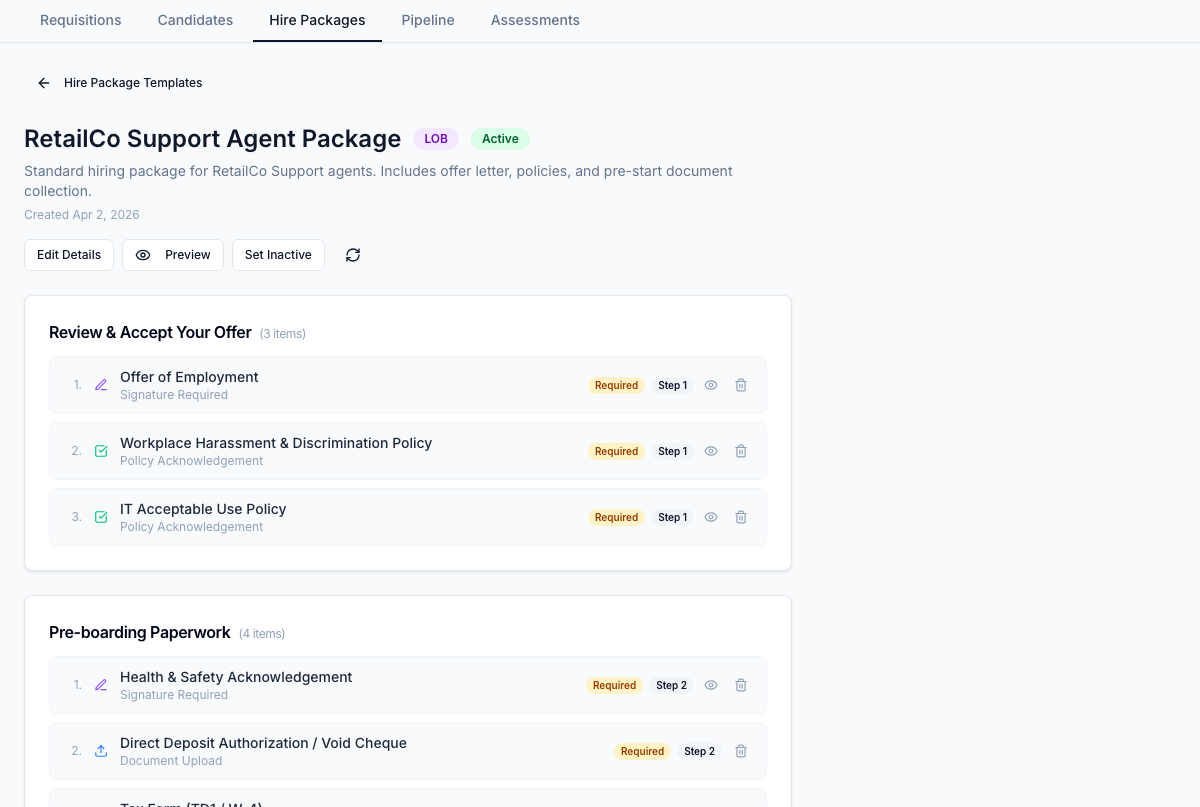
Click any template to view its full configuration, including all sections and items.
Template structure
Each template has two steps that map to the candidate's experience:
Step 1 — Review & Accept Offer
Items in Step 1 must be completed before the candidate can formally accept the offer. This step typically includes:
- Offer letter review and signature
- Policy acknowledgements required before accepting
- Initial document uploads (ID verification, right-to-work documents)
Step 2 — Pre-boarding Paperwork
Step 2 unlocks only after the candidate has accepted the offer. This step typically includes:
- Background check consent forms
- Direct deposit / payroll setup forms
- Additional policy acknowledgements
- Any remaining pre-start documents
Item types
| Type | Description |
|---|---|
| Sign Document | Candidate must electronically sign a PDF document |
| Policy Acknowledgement | Candidate must read and acknowledge a policy document |
| Document Upload | Candidate must upload a specific file (e.g., government ID) |
Configuring items
Within the template editor:
- Click Add Item in Step 1 or Step 2.
- Choose the item type.
- Set the item as Required if it must be completed before the step can be marked done.
- Add instructions that the candidate will see.
- Drag items to reorder them.
Scope
Templates can be scoped to control which offers they appear on:
- Tenant-wide — available for any offer regardless of client
- Client — available only for offers under a specific client account
- LOB — available only for offers under a specific line of business
Activating and deactivating templates
Set a template to Active to make it available when creating hire packages on offers. Inactive templates are retained but cannot be applied to new offers.